How GigLights Works... A Quick Overview
The Basics
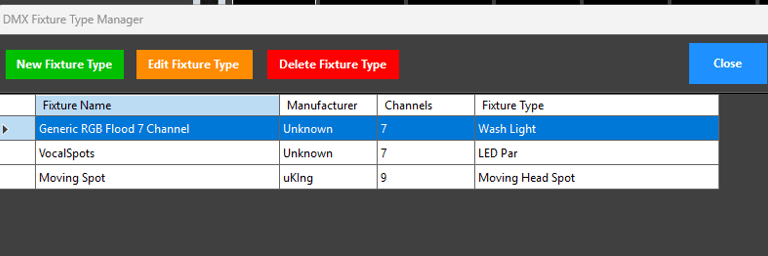
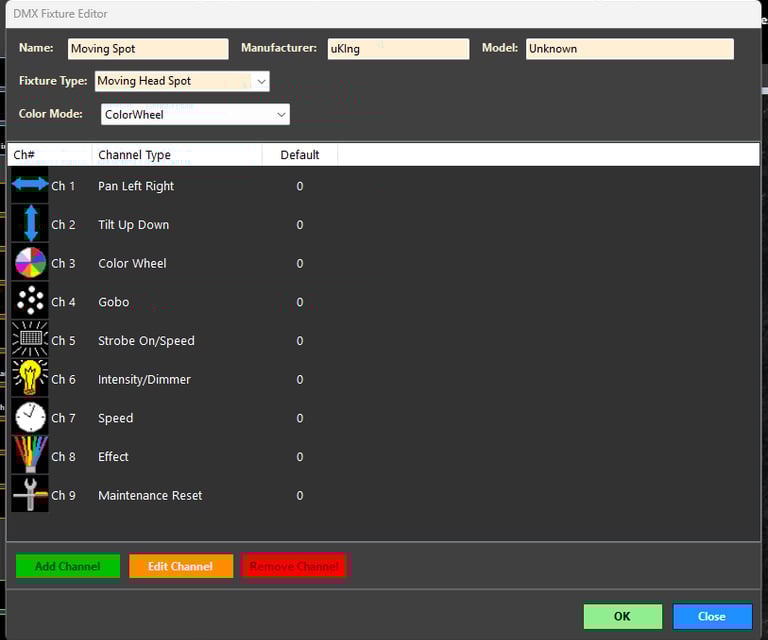
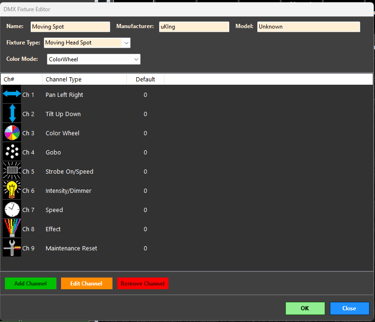
Create your fixtures in the fixture manager. You will need to know what DMX channels your fixtures uses. You usually get a channel map with your fixture when you buy them. This is what you will enter into the fixture editor. This is called a fixture definition.
It is really easy to define your fixture with GigLights. Everything is in drop down lists. All you need is that channel map and you are good to go. If you don't have your channel map, most can be found online.
This fixture definition is a more complex one. Most RGB flood fixtures are a lot easier requring just 7 or less channels.
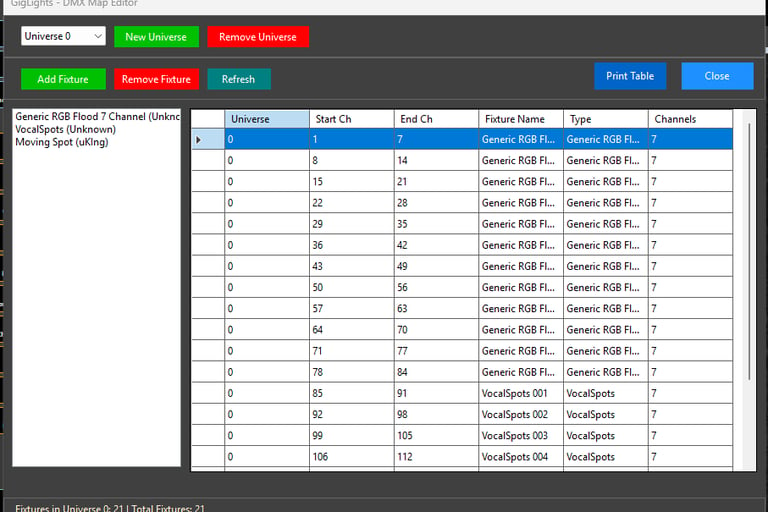
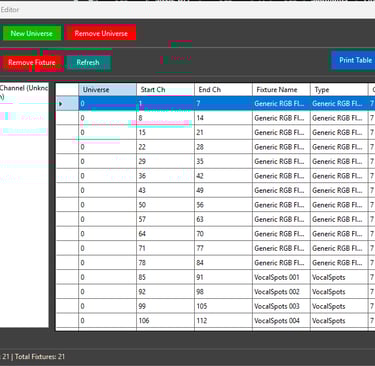
After you create your fixtures, you need to create a DMX map of them. This is super easy. You already have your fixture types defined so you just pick one of your fixtures and put it into the map as many times as you have fixtures. If you have say 7 "generic rgb floods", put that fixture into the map 7 times. GigLights will assign the DMX address in the map. When done, just print out the DMX map and set the DMX addresses on your fixtures.
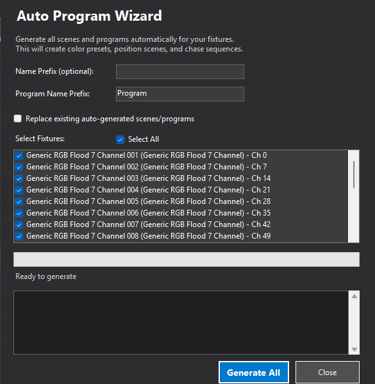
After you have your DMX map, it's time to make programs. GigLights has a Program Wizard to create over 500 scenes to be used by Auto Programs (that will also be created by the Program Wizard). This is a huge time saver for you. Scenes contain groups of fixtures with colors or functions. Programs contain groups of scenes. But this is all done for you with the Wizard.
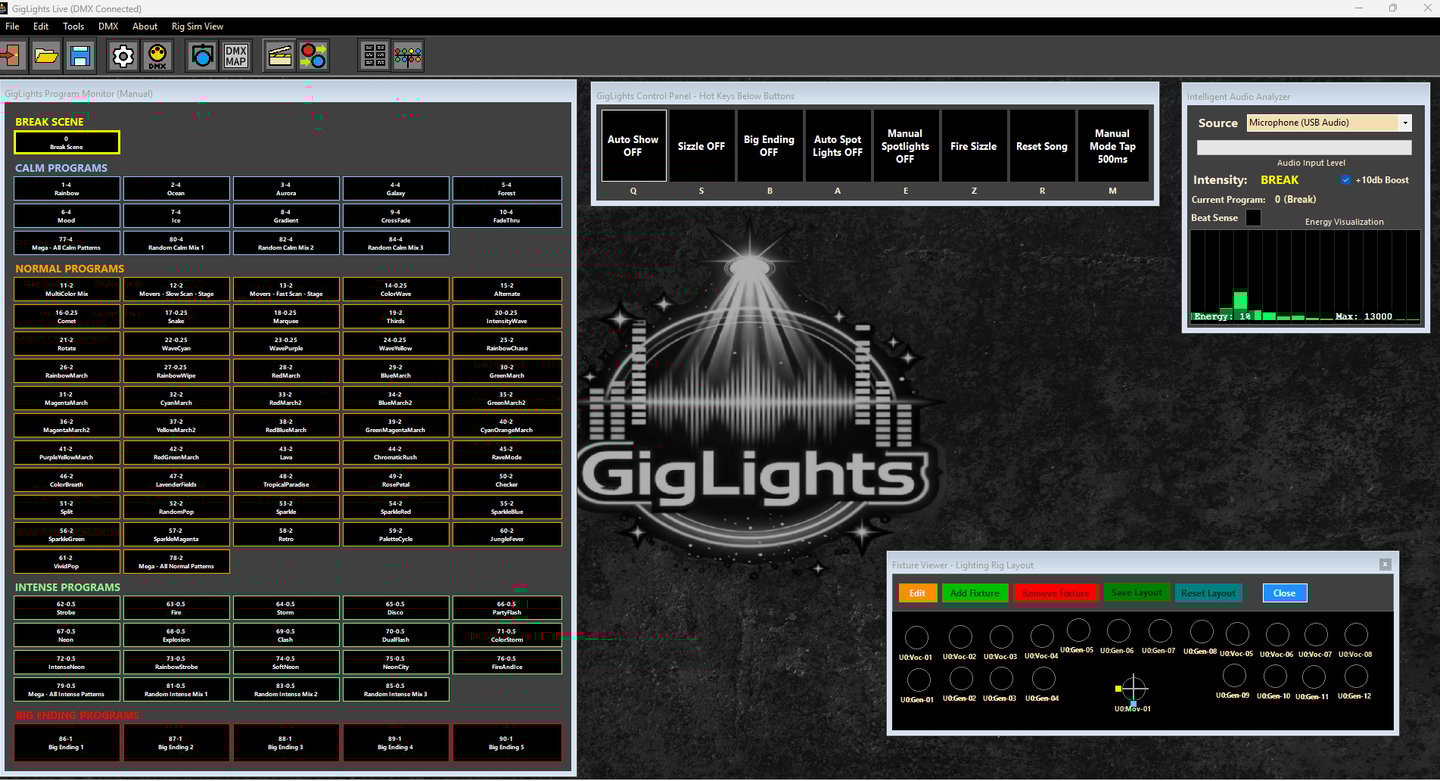
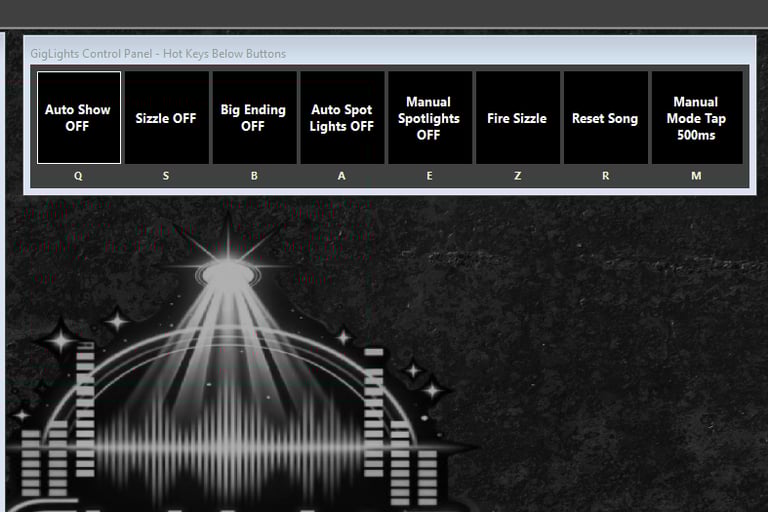
From Here, all you need to do is start Auto Show by clicking the Auto Show button. You will just be doing fine tuning for your style of music if needed. Play some music and watch the show.


This was just a quick explanation of how to get rolling. The are a lot of other features I will cover in the detailed instructions. From here, let me explain what Giglights does for you.
But First...Required Hardware...
You will need to have a DMX adapter plugged into your computer. GigLights will see it and should recognize it if it is on the list of accepted interfaces. You will have to connect to it in the Connection section.
You will also need a microphone, either through a USB to Mic adapter, internal laptop mic or direct from an aux out of your sound board. This allows Giglights to hear your music.
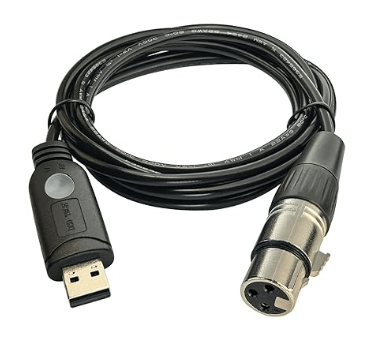
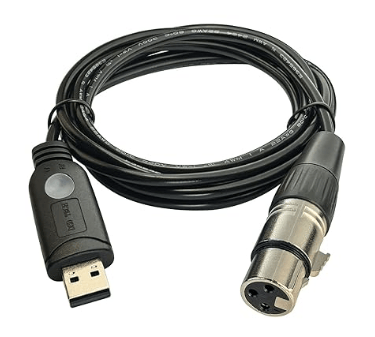
USB DMX Adapter
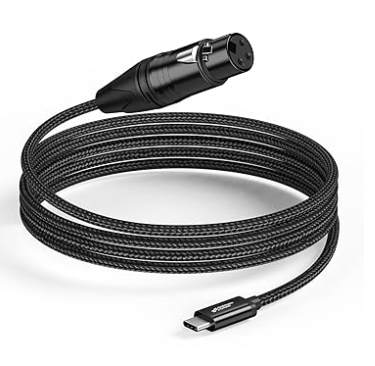
USB Microphone Adapter
Place the microphone somewhere where it can hear a good mix of the music with the drums being distinct.
GigLights In Action
Once you click the "Auto Show" button, GigLights will start listening to your music and analyze it. It will almost instantly pick up on the beat and the energy of what you are playing.
GigLights will select a Program based on the Energy of your music (Calm, Normal, Intense). As your music changes, it will change programs automatically. No hands needed.
If you have "Sizzle" turned on, GigLights will fire any scene you have designated as Sizzle which usually is to strobe some of your fixtures white but you can use fixtures your want.
If GigLights sense a lot of energy from all areas, it will switch to "Big Ending" program if you have it turned on, to flash the lights like crazy.
GigLights will also turn on Vocal Lights if you have some setup with a special vocal lights scene when it hears frequencies in the vocal range (music in that range will trigger them also but that's okay).
When the song you are playing ends, GigLights switches to a "Break" program which can be setup how you like but I use a low level blue scene for inbetween songs. You could use black or other color but I find the low level blue feels and looks the best.
GigLights has a Fixture Rig Simulator you can setup to show your fixtures in realtime without even hooking up your lights while adjusting or programming new scenes. Just put your fixtures where you want them and watch the magic happen when your run your Auto Show. Here is a quick demo with the Fixture Rig Simulator, showing it in action.

This video was made by playing the song through speakers and letting GigLights listen to it over a SM58 Microphone plugged into a USB Microphone interface.
There are minimal programs setup for the Auto Show but enough to show you what it is capable of. You can make any chases you want.
Copyright(c) 2025 GigLights.com